How does Google Lens work?
The Google Lens app is only available to download on Android devices, and the technology is integrated into Android cameras. However, there are a couple of ways that all phone users can access Google Lens. Here are the 4 main ways you can use Google Lens on your smartphone or tablet:
- Google Lens app (Android users only): Download the app and take a picture of the thing you’d like to know more about. This is probably the simplest way to access Google Lens if you have a vision impairment because you don’t have to navigate to the Lens feature – you’re already in the right place. You can also use Google Assistant – the virtual assistant on Android phones – to launch the Google Lens app. If you have Google Assistant set up, say ‘Hey Google’ or gesture to activate it and say "Use Google Lens", or tap the keyboard icon in the lower-right corner to type the same command. Watch our video for help setting up Google Assistant on your device.
- Camera (Android users only):
Android users can access Google Lens by opening their camera and tapping the Lens button. Alternatively, you can use a screen reader to locate the Lens button, then tap it. Once your camera has the Lens interface, take a photo and Google will bring up information about the subject of your photo. - Google Photos (all phones):
Open the app, select a photo, and use a screen reader to locate the Lens icon. Once you’ve tapped the Lens icon, Google will provide a search option or a translate option. - Google app (all phones):
Open the app and click the Lens icon in the search bar, or use a screen reader to tell you where to find the Lens icon and then tap it. Next, choose a photo from your camera roll and Google will tell you more information about what’s in your image.
How can Google Lens help you?
Picture yourself in these scenarios and learn how you might use Google Lens to make your life easier.
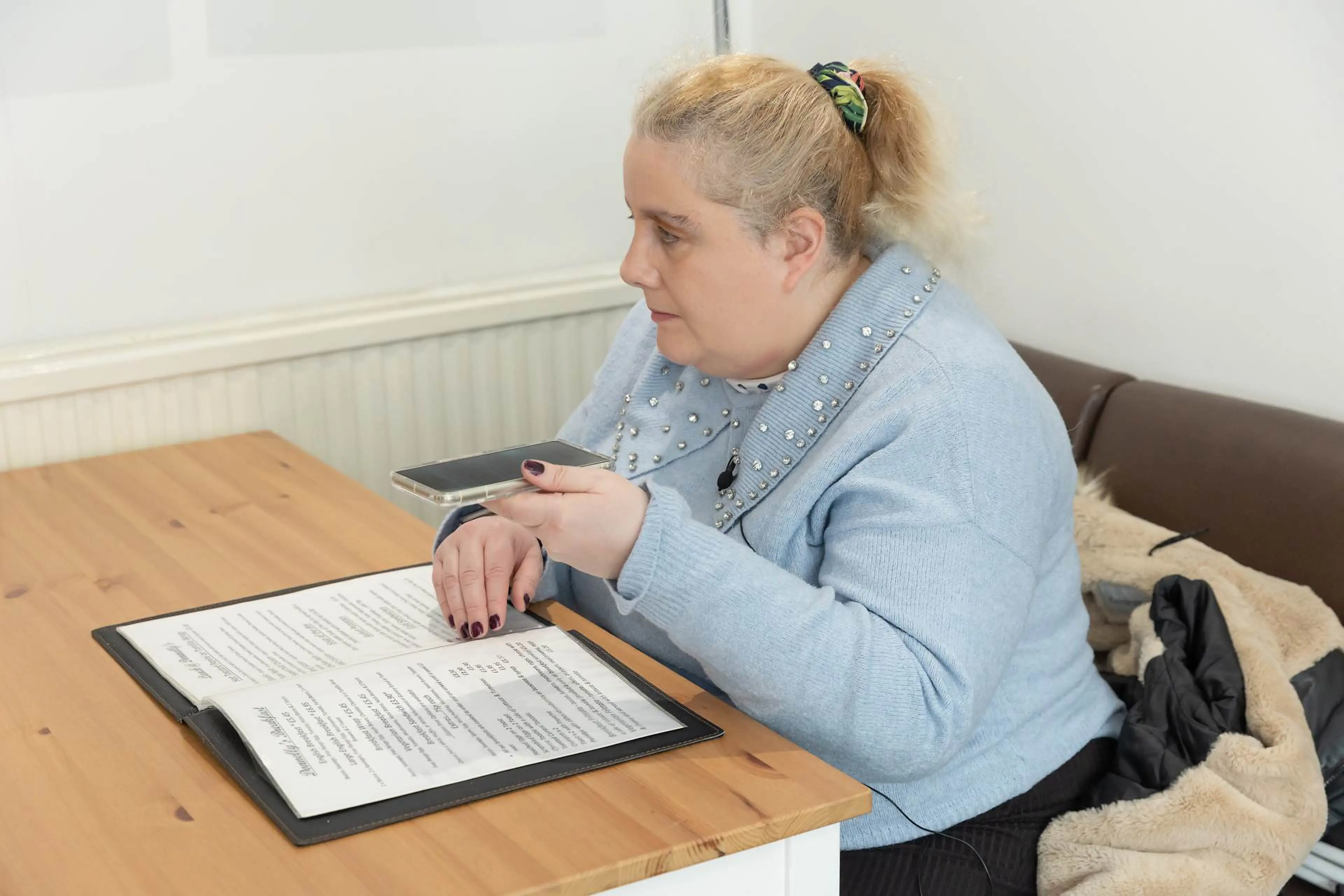
- Translating text: Google Lens can be helpful if you're on holiday and in a restaurant but the menu is in a different language, or the writing is too small to read. Using Google Lens, you can quickly translate the menu options and hear them read aloud.
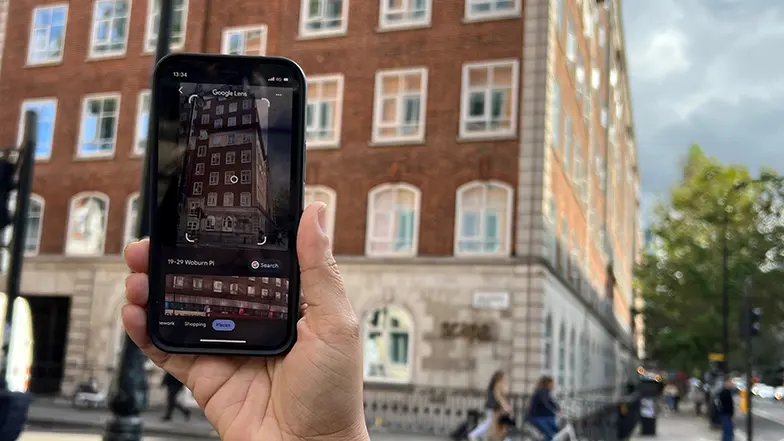
- Image search: If you’re not sure what’s in front of you, for example, you want to know which model laptop you have, you can take a photo on your phone and use the image to perform a Google search. Google will then tell you the model type and bring up relevant information related to it.
- Copying text: You can also make notes and copy text while Google Lens is reading a document to you. By holding down a section of text, you can copy it, and paste it into your notes app. You can also send the text to another device if you are logged into your Google account – so you could send it to your computer and put it into a Microsoft Word document, for example.
- Understanding text: If a household appliance breaks down, you might have a drawer full of paperwork and need to find the right manual. With Google Lens, you can check if the manual you have in your hand is the correct one, and you can have the instructions read out loud. You can also use Google Lens to take a photo of the customer support number, then select the number on the photo and call it to request support. There’s a similar feature available in the Be My Eyes app, in which the AI can read out text for you.
Using Google Lens with Google TalkBack
Thanks to its integration with Google TalkBack (Google's screen reader), Google Lens can help people with vision impairment with everyday tasks, such as:
- Reading recipes or instructions.
- Reading text written in a small font.
- Understanding complex documents, like bus timetables.
- Reading menus.
- Understanding something in a different language (you’ll need to translate it to your own language before listening to it).
- Identifying something that’s new to you – TalkBack can read out the name of the thing you’re identifying, or you can use Google Lens to learn more about it online.
- Someone living with sight loss can have any document read out to them.
When Google Lens is open and Google TalkBack is activated, drag a finger around the Lens interface until you hit the “Camera search” button.
Use this button to take a photo of the text you’d like to be read out, and then TalkBack will read it to you.
Using Google Lens with a screen reader on a desktop
You can access Google Lens on a computer. If you’re using Google Chrome, right-click on the image you’d like to know more about and then select ‘Search image with Google’.
On other browsers, navigate to Google’s search engine page, then click on the Lens icon which can be found towards the end of the search bar. Use your browser’s built-in screen reader and its cues to help you find the Lens button to click it, and follow its instructions on how to upload an image.
Google Lens can quickly make inaccessible documents accessible by reading them out loud.
How to get Google Lens to read text aloud
Although getting extra information about an image is useful, for people with vision impairment, having that information read aloud can be even more helpful. There are a few ways to use Google Lens with a screen reader. Here’s how to get Google Lens to read text aloud from a photo:
- Select the “Search” option. Take a photo then select the text.
- Once the text is selected a pop-up menu will appear.
- Choose from “Copy”, “Select all”, “Listen”, or “Translate”.
- Select “Listen” to hear the text.
Alternatively, if you’re signed into your Google account on your laptop, you can copy the text in an image on your phone and send it straight to your computer. Once you’ve done this, open a Microsoft Word document and paste the text, then use Word’s read-aloud function.
Things to keep in mind when using Google Lens
- To use Google Lens, you must have a smartphone with a camera.
- Remember, the app can only see what’s in your photo – it can’t give you information about live footage.
- We recommend that you practise using Google TalkBack before you try using it with Google Lens.
- If you’re not using Google TalkBack, the process of getting the app to read text aloud can be complicated.
What’s the difference between Google Lens and Google Lookout?
Google Lens gives you more information about a specific image at your request, whereas Google Lookout can provide a continuous narration about your environment. For example, you could use Google Lookout to help you navigate around a room, but you couldn’t use Google Lens for this purpose.
Google Lookout offers several different features for visual assistance, including reading text, scanning documents, identifying currency and telling you about objects or items in your environment. It offers similar functionality to Microsoft’s Seeing AI app.
How to download Google Lens
If you have an Android device, you can download Google Lens for free from the Google Play Store. When you’re searching for the app, look out for its icon, which features a multi-coloured camera with a white background.
If you have an Apple device, you can access Google Lens through the Google app or the Google Photos app, both of which are free to download from the App Store.
Apps that are similar to Google Lens
- Seeing AI: Seeing AI uses artificial intelligence to describe everything from printed text to photos, to identify items, nearby people, and things in your cupboard.
- Be My Eyes: Be My Eyes connects people with vision impairment to their friends, family and a network of sighted volunteers. The app uses artificial intelligence to help with tasks like describing a photo and locating misplaced items.
- NaviLens: Via printed QR codes, NaviLens reads out signs and labels and provides audio information to help blind or partially sighted people navigate their environment.
Alternatively, some Apple devices have a feature called Visual Intelligence, which lets you learn more about the places and objects around you by using the camera control.