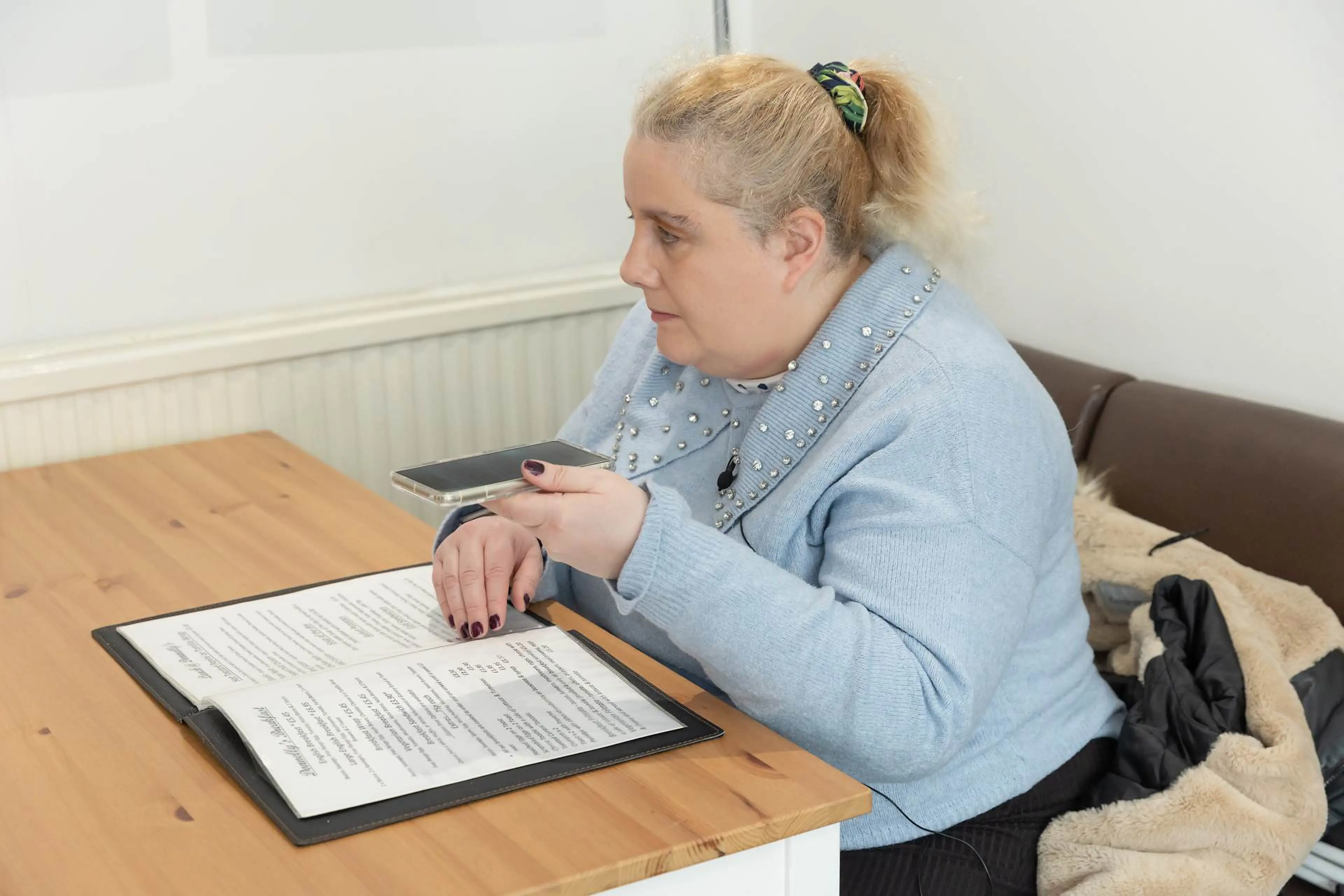
In my experience I have found my Android phone to be easy to use, and easy to customize to my personal preference, such as very clear icons on my home screen.
Accessibility features can help people with vision impairment to use tools and functions on their phones and tablets that may otherwise be too difficult to access.
In this guide, you’ll learn about the different accessibility features of Android devices, what they do, and where to find them in your phone or tablet. We’ve included features like voice command, adjusting display settings to make text easier to see and read, screen reader, audio descriptions, and even accessible ways to take a selfie.
Some of the tools in this guide are only available on Android version 11.0 and up. If you’re not sure which version you have, see Google’s check and update your Android version guide.
Some accessibility features require you to touch the phone or device screen. If you can’t interact directly with your Android screen, you can also control your device with Switch Access, which may be suitable users with additional needs.
In my experience I have found my Android phone to be easy to use, and easy to customize to my personal preference, such as very clear icons on my home screen.
Two powerful Android features – Google Assistant and Voice Access – enable you to use your phone and apps hands-free.
Google Assistant is Google’s native AI voice assistant. You can hold a ‘conversation’ with your Google Assistant, as it’s programmed to respond appropriately to your voice commands. You wake up your Google Assistant by saying, “Hey Google” or by holding down the Home button. It can answer questions, perform tasks on your Android phone, or search the internet.
You can also create Quick Phrases for certain commands to streamline your experience so you won’t need to say “Hey Google” every time. To turn this on, go to Google Assistant settings and then Quick Phrases. From here you’ll be able to select the Quick Phrases you’d like to use.
The Google Assistant feature bypasses a lot of the need to see and touch your screen to access apps and change settings. For example, instead of searching online for bus timetables, you can ask Google for the best way to get from A to B using public transport. It can also send text messages, check emails, play music, provide daily weather updates, take a photo and navigate using Google Maps. Google Assistant is available on most Android phones and tablets.
Loading video...
If you would prefer to watch the video without audio description, you can watch the non-described version of How to set up and use Google Assistant on YouTube.
Google Gemini is an AI model, launched in 2023, which is the evolution of Google Assistant and Google’s AI chatbot Bard coming together. Gemini refers to both the built-in AI model on Google devices but also an app, which is available to download across both Apple and Android products.
Gemini can help you with many tasks in a similar way to Google Assistant with the added benefit of being able to help with more creative tasks like writing or planning. Google has also added updates which aim to provide more user-friendly experiences, most of which are beneficial to people living with a vision impairment.
Loading video...
While Google Assistant is the technology that recognises and actions your prompts, Voice Access is the feature that enables you to control your phone with spoken commands instead of having to touch the screen, creating a voice-activated mobile phone. Voice Access focuses on controlling what’s on your phone screen and your phone’s functions, like editing texts or opening apps, rather than searching the internet like Google Assistant.
To find Voice Access, open Settings, tap on Accessibility, then Voice Access.
There are several ways to customise your display setting to make it easier to see what’s on your screen and improve the accessibility of your Android mobile phone.
Depending on your level of vision, you might find it helpful to customize the text – increasing or decreasing the font size, making it bold, or using high contrast text – on your Android device to make it easier to read. To alter the size, go to Settings, select Font Size, and move the slider until the text is the right size for you. Similarly, bold fonts can be turned on within the accessibility settings: go to Display Size and Text, then turn on Bold Text. Depending on the manufacturer of your android phone, the settings menu may differ.
Top tip: Use the search function in settings to locate bold text (or any other setting or feature).
Another way to make text more readable is by playing with the contrast settings. High contrast text can be turned on from the same accessibility menu as bold text. It works by changing the colour of the text to either black or white (depending on the original colour) to make it easier to read. Additionally, there’s a beta feature called Outline-Text. This displays text in dialogue boxes that are a contrasting colour for improved readability.
You can create widgets on your home screen so you can see your favourite apps’ content more easily. To create a widget, press and hold a space on your home screen and a widget button should appear. Selecting the widget button will bring up a list of all the apps that can have widget shortcuts. Select the apps you’d like to appear as widgets on your home screen.
Another great way to customise Android devices is to install what is called a launcher. Launchers are the name of your devices home screen on Android. This is where all the apps are organised and launched, phone calls are answered and made, and other tasks. Being able to customise this is a big advantage to people with low vision. Again, there are so many options to choose from but one launcher that may be worth trying with your clients with low vision is ‘BIG launcher’, which uses high contrast colours, has large icons, simplifies basic phone functions and has an SOS button which sends current location and call contacts.
Within my Android phone I have been using “Big Launcher” software which I have found to be very accessible. It allows you to customize font size and contrast of text, change the keyboard pad etc.
The magnification feature is a simple way to always or temporarily enlarge what’s on your phone screen. To find the magnifier, go to Settings, then Accessibility, then Display, where you will find Magnification.
The Accessibility menu is an on-screen menu with shortcuts to your most frequent actions and other useful tools and settings. From here, you can enlarge your display and do other useful things, including:
To activate the Accessibility menu, navigate to Settings, then Accessibility, which is usually a little way down the page. Tap Accessibility Menu, and in the next screen, toggle the Accessibility Menu to ‘On’. Finally, accept permissions by pressing ‘Allow’ and tap OK to complete.
You can change the colour and motion settings to help ease stress on your eyes or tailor your screen to suit your own needs.
To find the colour and motion settings, navigate to Settings, then Accessibility and select Display, where you will find Colour and Motion.
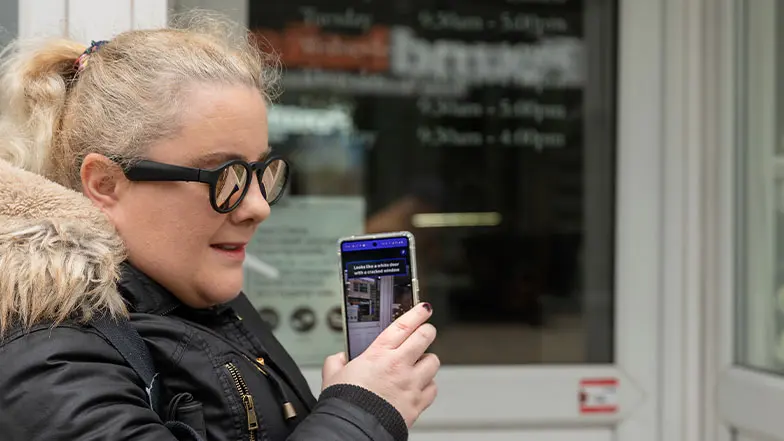
Select to Speak describes what’s on your phone screen. For example, you can tap on text or an image on your screen or point your camera at external text or an object, and your phone reads or describes it aloud.
To find the Select to Speak feature, navigate to Settings, then Accessibility and then select Display. On this screen, you will find several accessibility options, including Select to Speak. The top option is Select to Speak which can be toggled to turn the setting on.
Reading Mode simplifies the content on a page by removing distracting elements like ads and sidebars for a more focused experience. Once turned on, you can change the contrast, colour, formatting, and font size.
It can be used on apps and webpages with long content, but currently is not compatible with PDF files, chat messages or social media feeds. It can also be used to read content aloud, with the reading voice and speed also customisable.
You will need to download the Reading Mode app from the Google Play Store. If you use Voice Access or Switch Access, you’ll need to turn these off before you set up Reading Mode and turn them back on once set-up is complete to ensure they’ll be able to work properly when Reading Mode is on.
Once you’ve successfully installed the app, you’ll be redirected back to your device’s Accessibility Settings. Go to Reading Mode, then turn on Reading Mode Shortcut. You’ll then be asked for permission for Reading Mode to access content.
Once that’s done, you should have a floating button on screen when you’re accessing any app or page with long content. You can tap that button to open Reading Mode and change the visual display or read aloud.
Alternatively, you can set up other shortcuts to access reading mode if a floating button is not right for you.
Within your device settings go to Accessibility, then Reading Mode, then Reading Mode Shortcut.
If you’d like to access Reading Mode by using the volume keys, go to Hold Volume Keys, or if you’d prefer to use a gesture go to More Options then Use Button or Gesture, and then Gesture.
Synapptic is a piece of software designed to help make phones and tablets more accessible for people with visual impairment. It reduces your phone’s display to a minimal yet functional layout and includes features such as a colour-coded menu and simple buttons. You can choose between a grid-style or a list-style menu and this layout is replicated across different apps, so the position of buttons is more predictable.
The software is always improving. The latest version includes assistive technologies such as an AI helper, an enhanced Synapptic reader, and word highlighting. You can buy an Android device with Synapptic already installed or buy the software separately.
Also, as of July 2026, Synapptic is now an authorised a Meta glasses retailer and can offer free UK based support to help alongside supplying the glasses.
Google TalkBack is the built-in screen reader on Android. It is a gesture-based screen reader, using combinations of taps and flicks to read the content on the screen aloud. TalkBack also connects with a braille display so you can access your screen content through braille.
TalkBack now has a two-finger double-tap gesture to start or stop voice dictation when using the Google Keyboard. Users can issue spoken commands to revise text, making dictation more efficient in everyday use. TalkBack also announces additional formatting information, including text styles and colour.
For users who prefer a physical keyboard, TalkBack has introduced an enhanced keymap with expanded shortcuts and a dedicated browse mode for navigating web content. Braille display users also benefit from new browse mode shortcuts, along with updates to existing braille key assignments, to support more direct navigation through content.
You can find TalkBack by going to Settings, Accessibility, and then TalkBack. On some Android devices, accessibility options may be found under Additional Settings. Samsung users can also ask Bixby to turn TalkBack on or off.
With Audio Description, your Android accessible phone can describe what’s happening on screen in some films or shows. To switch on Audio Descriptions, go to Settings, then Accessibility, then activate the Audio Description toggle to on.
Most of the accessibility features in this guide can be found under Settings > Accessibility on your Android device. Find the features you’d like to activate and toggle them on.
Most of the accessibility features in this guide can be found under Settings > Accessibility on your Android device. Find the features you’d like to activate and toggle them on.
Top Tip: You can also the search feature at the top of settings to find accessibility features you may want to use.
The Lookout app is an incredibly powerful computer vision tool designed specifically for people with vision impairments. Using your Android phone's camera, Lookout provides visual information by identifying objects, reading text, and describing your physical surroundings in real-time.
Some of the most useful modes in the Lookout app include:
• Text & Documents: Scans and reads post, signs, and full pages of text aloud.
• Food Labels: Identify packaged foods by their label or barcode.
• Explore: Describes objects and people in your immediate environment live via your phone camera.
• Images: Uses AI to generate detailed descriptions of your photos and answer follow-up questions about them.
You can download the Lookout app directly from the Google Play Store.
The Magnifier app adds new capabilities, including real-time text search that highlights matching words as the camera moves and provides haptic feedback when results are found. Voice-based search is also supported, making it easier to locate information when there’s lots of text. Pixel foldable devices now include the Magnifier app as well, taking advantage of the larger unfolded display.
Pixel’s Guided Frame feature further improves the photo-taking experience for people who are blind or have low vision by using Google’s Gemini AI to provide richer scene descriptions. Instead of only reporting the number of faces in a frame, the feature can describe surrounding details and general context, helping the user to know when to take the perfect picture.
The features in this guide are specific to Android devices. Apple devices have their own set of accessibility tools and features, which you can read more about on our Apple Accessibility Features page.
Yes, you can send WhatsApp messages using Google Assistant. To do so, make sure you have Google Assistant enabled (for instructions on how to do this, see ‘Google Assistant’ above). You can then ask Google to “send a WhatsApp message to Jane” and speak your message into your device. Google Assistant types out and sends the message. If you prefer to send an audio message, ask Google to “send an audio WhatsApp message to Jane”. As well as sending your voice message, Google will also send a transcription.
To read incoming WhatsApp messages, give Google Assistant permission to access your WhatsApp notifications in Settings. Once set up, you can ask Google to “read my messages” when you get a notification.
In addition to Google Maps, Google Assistant is also compatible with the real-time navigation app Waze.
Google Assistant is compatible with several music apps, including YouTube Music and Spotify.
To select your default music service, go to Google Assistant Settings, select Music, and then choose your preferred music service from the list of available apps. You can also listen to podcasts through Google Assistant.
Android is the operating system (OS) made by Google. It works with Android phones, tablets and devices. It is Google’s equivalent to Apple’s operating system called iOS, which is used solely on Apple iPhones and devices.
Several smartphones and devices use Google’s Android OS, including Google Pixel, Samsung Galaxy, ASUS ROG, Nokia and Sony devices and the Moto range from Motorola. Huawei phones are no longer compatible with the Android operating system.
Guide Dogs is committed to integrating technology into our service delivery and promoting excellence in accessibility and usability. Our staff undergo comprehensive training in technology and accessibility in collaboration with industry leaders like Apple. We foster knowledge of technology and create content through our Technology Champions, comprising Vision Rehabilitation Specialists and Habilitation Specialists. We review this content periodically to ensure that it is up to date and includes new features and changes with operating systems. We work with our partners to ensure accessibility is at the centre of the design. To find out more, there is more information in our accessibility policy.
Whilst Guide Dogs may be able to suggest various third-party websites and third-party applications which may be able to assist you, those are not endorsed by Guide Dogs. Guide Dogs have no control over those third parties and cannot be held responsible for the accuracy of information and support they can provide or the suitability and quality of any products or services they provide.