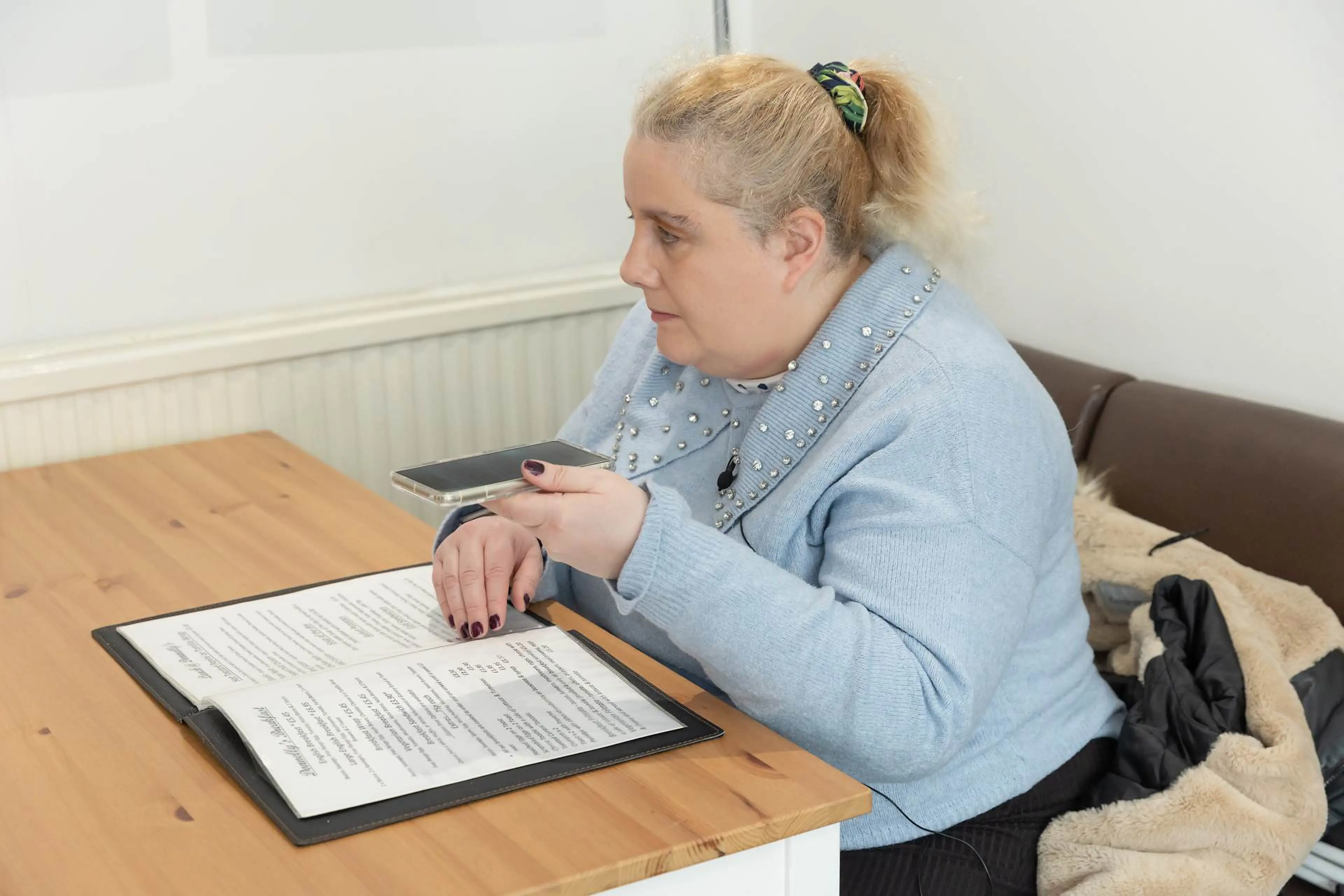
As one of the major manufacturers of phones, computers and other technology, you may well have an Apple product in your home. While it may seem daunting at first, these devices actually offer a range of accessibility tools and features which make it easy to customise your experience.
Apple's commitment to accessibility spans across various versions of iOS - from iOS 12 to the latest iOS 18, and includes features such as the VoiceOver screen reader, Siri, Speak Selection, and more.
Setting up accessibility features will be different depending on the version of iOS you are using.
Loading video...
The latest Apple accessibility updates
Accessibility features are continually evolving. By staying up-to-date with the latest accessibility updates, you can make the most of your Apple device and take advantage of new ways to enhance your digital experience.
In September 2024, Apple unveiled a range of software features aimed at improving accessibility with iOS 18. Overall, this latest update offers more granular control over various accessibility options. Here’s our list of the top 3 updated features:
Enhanced VoiceOver
Apple's built-in screen reader continues to receive significant improvements in iOS 18. You can now make use of new voices, and more easily tailor options like voice speed and keyboard shortcuts on Mac.
Magnifier: Reader Mode and Detection Mode
The Magnifier app has been enhanced with a new Reader Mode, making it easier to read text on the screen. Additionally, accessing Detection Mode via the Action button (an additional physical button on later model iPhones) has been simplified.
Apple Intelligence: bringing AI to accessibility
Visual Intelligence can describe scenes and objects captured by the camera, making it easier for users to move around safely and independently.
If you're new to using an Apple device, we've got you covered. Start your journey with our helpful video tutorials on setting up your iPhone or iPad. These videos provide a beginner-friendly introduction to getting your device up and running and can be found here: Tech for All learning programme.
Apple accessibility shortcut
Apple’s accessibility button allows you to access a selection of accessibility shortcuts right from your home screen. You can customise these shortcuts to access the apps you use most frequently. You can even add three-click shortcuts on your home or side button for quick access to essential functions. Find this in your iPhone’s accessibility settings area under “Accessibility Shortcut”.
Siri voice assistant
Siri, Apple’s voice assistant, can be a really useful tool to navigate your iPhone or iPad. The latest iOS 18 updates provide a more customisable experience with Siri.
It offers you hands-free control through voice commands. You can enable calls, texting, setting alarms, and reading text aloud. Siri also provides navigation assistance, reads web content, integrates seamlessly with VoiceOver for screen-reading, and supports voice searches. Siri can also manage your schedule, play media content, and assist in locating lost devices through “Find My”.
What’s more, you can use Siri to navigate to shortcuts on your home screen, meaning you can access them without opening the Shortcuts app. To add a shortcut to your home screen, open Shortcuts > select the action you’d like to add to your home screen using the three dots > “i” icon > Add to Home Screen.
Follow these steps to enable Siri:
In the Settings menu, select "Siri"
Select ‘Talk to Siri’ to choose how Siri will listen out for you. You can also choose to enable Siri by pressing the side button on your phone.
To stop Siri from listening out for you, simply toggle off 'Listen for "Hey Siri".
In this menu you can also delete Siri & Dictation History, enable or disable 'Automatically Send Messages' and more.
Adjust your iPhone or iPad screen settings to suit you
You can customise your iPhone or iPad's screen settings to make it more comfortable to use. Explore features such as Apple Zoom, Reduce Motion, and Text Size. For users with low vision, iOS 18 offers a more customisable home screen, and an adjustable control panel.
For each of the following features: “Zoom,” "Motion," “Text Size” “Contrast” - you will need to access your device's Settings (this app is typically found on your home screen), then scroll down and tap on "Accessibility" and toggle the switch to the "On" position to activate the feature(s) relevant to you.
Our Tech Hacks videos provide step-by-step guidance for each setting.
Apple Zoom is a powerful accessibility feature designed to assist you if you have a vision impairment. It can magnify content on your iPhone or iPad screens making text, images, and interface elements larger and more readable. With its customisable settings and ease of use, Zoom allows you to tailor your viewing experience, ensuring you can access and interact with content comfortably. Explore these options and adjust them to best meet your visual needs, enhancing your overall iOS experience.
Adjusting the contrast on your iPhone or iPad can make the device's display easier to read and navigate.
In the Accessibility menu, select "Display & Text Size." You may find this option under "Vision" on older iOS versions.
Once you've enabled "Increase Contrast," you'll be given several contrast style options.
Select the contrast style that suits you.
You can enable one or more of these options simultaneously.
These adjustments allow you to tailor the display to your specific needs and preferences.
You can increase the text size on your iPhone or iPad – helping to improve readability and accessibility.
Once you have accessed the "Accessibility" option scroll down and tap on "Display & Text Size." This option may also be labelled as "Accessibility" on older iOS versions.
In the "Display & Text Size" menu, you’ll find an option for “Larger Text”, in which there’s a slider. Slide it to the right to increase the text size or to the left to decrease it. As you adjust the slider, a preview of the text size changes will be displayed in the text box above.
Above the main text size slider, there is an option called "Larger Accessibility Sizes." Enabling this feature allows you to further increase the text size beyond what the main slider offers.
Toggle the switch next to "Larger Accessibility Sizes" to "On."
If you prefer, you can also enable the "Bold Text" option just above the text size slider. This makes the text appear thicker and easier to read.
If you find that the motion effects on your iPhone or iPad are causing you discomfort, you can reduce or disable these animations by accessing Your Device's Settings. When this option is enabled, it will reduce or eliminate various motion effects on your device creating a more static and less visually dynamic user interface. There’s more options in this menu too, like Show Vehicle Motion Cues (which can help reduce motion sickness) or Dim Flashing Lights. You can also choose whether your phone auto-plays visual elements like animated images or message effects.
Here is how to turn on the Reduce Motion feature:
Open Settings
Select Accessibility
Tap on Motion
Enable the Reduce Motion option by tapping the toggle.
You should now notice that the screen transitions have changed. Also within some apps, the animations will be disabled.
Changing your background is one way you can make your iPhone or iPad simpler to use. For example, you can set your lock screen and home screen wallpaper to a solid colour – so avoiding a patterned or highly detailed image – to make it easier to distinguish apps from the background. You could even make your lock screen and home screen different colours so you can tell when your device is locked. Edit your wallpaper by going to Settings > Wallpaper.
Additionally, reducing background transparency can improve the legibility of your phone’s content. When “Reduce Transparency” is toggled on, it darkens some backgrounds which makes the displayed content stand out more. To switch on this feature, head to Settings > Accessibility > Display & Text Size > Reduce Transparency.
Updates to iOS enables users to customise the look of apps as they appear on the home screen. App icons can be enlarged and/or colour adjusted. This is done in the edit home screen mode and icons can be made to appear in light or dark mode or customised with colour filtration.
The control panel can be made more accessible for low vision users with the ability to reposition the controls and resize them. You can do this by putting the control panel in edit mode when open using the same method as the home screen (long press with one finger). From this edit mode, new controls can be added. There are sections devoted to accessibility controls with a further 15 controls for Vision Accessibility now available, for example raising the VoiceOver volume.
Split View is a feature available on certain iPad models that allows you to use two apps simultaneously, side by side. Before using Split View, ensure that your iPad supports this feature. Split View is available on iPad Pro models, iPad Air 2 and later, and iPad mini 4 and later.
Begin by launching the first app you want to use in Split View. This app will occupy one side of the screen.
Then access the “Dock” by swiping up from the bottom of the screen (on older iPad models) or swipe down from the top-right corner (on iPad models without a physical Home button). The Dock will appear at the bottom of the screen.
Tap and hold on the next app icon you want to open, and then drag it onto the screen.
Place it on either the left or right side of the screen, depending on your preference. You can now interact with both apps simultaneously.
To exit Split View and return to a single app view, simply swipe the divider all the way to one side or tap the app switcher icon (usually a square or three horizontal lines) in the centre of the divider bar. This will return you to your regular iPad interface.
VoiceOver - Apple’s built-in screen reader
VoiceOver is Apple's built-in screen reader, designed to make your device accessible through audio and tactile feedback. With VoiceOver, your device can read aloud the contents of your screen, enabling you to navigate and interact with your device effectively through touch and audio feedback. The latest iOS 18 updates introduced new voices, and you can more easily tailor options like voice speed and keyboard shortcuts on Mac.
VoiceOver offers various settings you can customise to meet your needs. You can also connect a refreshable braille display for tactile feedback. To make VoiceOver even more accessible, you can set up an Accessibility Shortcut that allows you to toggle VoiceOver on and off quickly.
For further information on VoiceOver, how it works, and how it can benefit you - check out our instructional videos on VoiceOver and the rotor option for detailed guidance.
If you would prefer to watch the video without an audio description, there is a non-described version here rather than the accessible one below.
Loading video...
Using Apple VoiceOver with Braille is a powerful and inclusive accessibility feature that empowers you to interact with Apple devices more easily. This innovative technology combines two essential components: VoiceOver, a screen reader, and Braille displays, which provide tactile feedback through raised dots representing characters and symbols. This feature extends to Apple Watches as well. When integrated, these features create a seamless and versatile experience.
Magnifier app on iOS
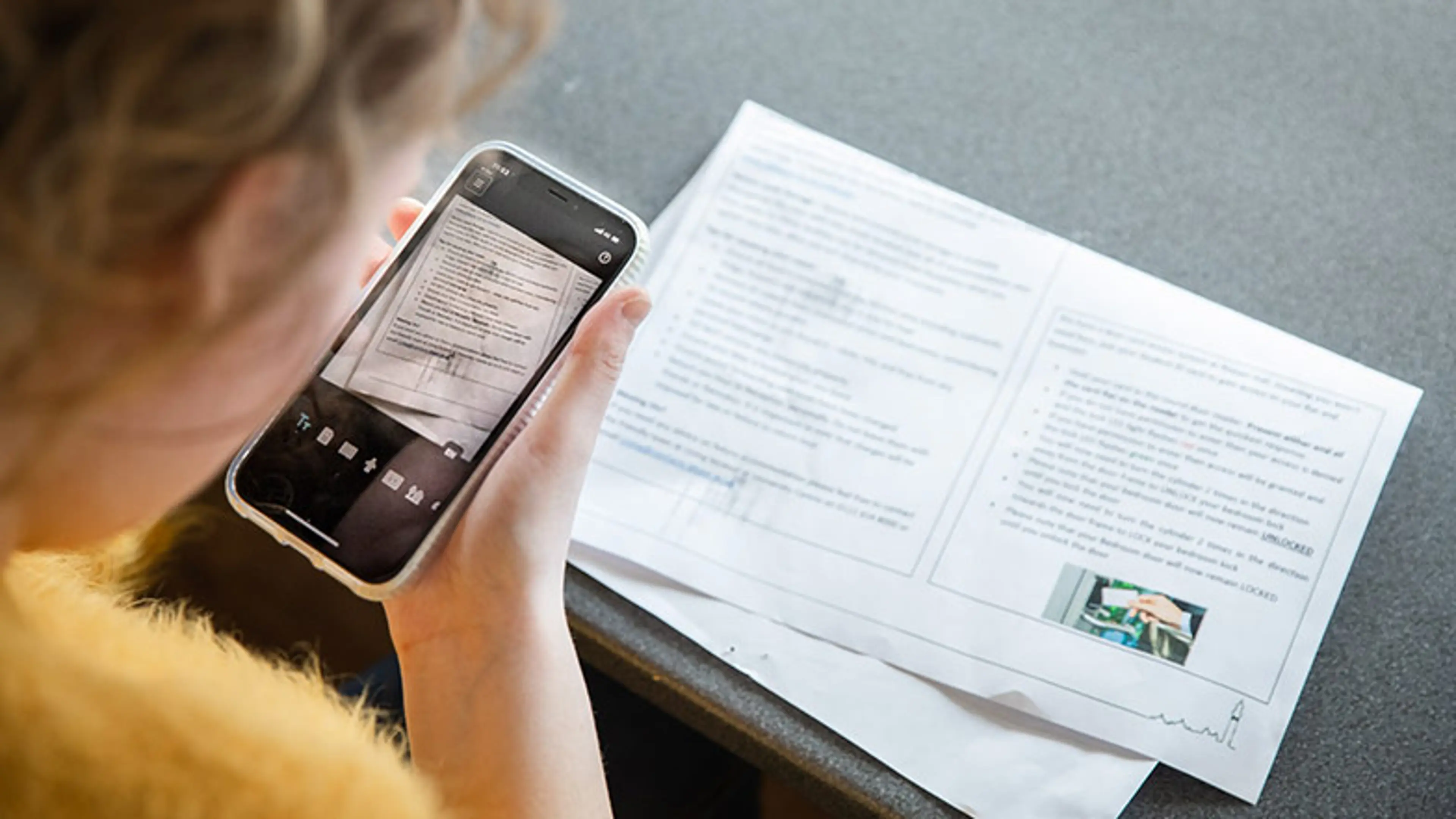
The Magnifier app turns your iPhone or iPad camera into a powerful magnifying tool, helping you navigate your surroundings better. It also now has Reader Mode, making it easier to read text on the screen.
Find out how to use Detection Mode on your iPhone, and the “Point and Speak” feature:
Apple introduced the Magnifying tool to the iPhone in 2018 with iOS 12. Now, using the same tool, you can use your iPhone to help you identify when people, doors and objects are near you while you move around. This is called ‘Detection Mode,’ and it allows you to use features like ‘People Detection,’ ‘Door Detection,’ and ‘Image Descriptions’ directly from within the Magnifier to get descriptions of your surroundings, including things like text and symbols around a door, how far away you’re standing, and even how to open it.
Detection mode is available on iPhones and iPads with LiDAR sensors and requires iOS 16 or iPadOS 16 or later. You can enable Detection Mode within the Magnifier app settings by opening the app, tapping the gear icon, and enabling the plus icon next to Detection Mode. Alternatively, you can assign Detection Mode to your phone’s Action Button (an additional physical button on the side of later model iPhones) for quicker access.
For Door Detection: Open Magnifier, tap the Detection Mode icon, and select Door Detection. Approach a door for information.
For People Detection: Open Magnifier, tap the Detection Mode icon, and select People Detection to get information about individuals and their distance.
“Point and Speak” is a new feature in the Magnifier app on certain iPhones and iPads that use LiDAR technology introduced in September 2023 that can read text on your household objects aloud. This feature is great for identifying text on items in your surroundings, such as buttons on appliances like microwaves.
However, Point and Speak only recognises text, not symbols on appliances, and it can't identify objects by pointing at them and may not work well for tasks like reading text on food packaging or long passages.
In the world of iOS accessibility, the game-changer for someone like me with sight loss is undoubtedly 'point and speak' in Magnifier. This not only describes my environment but also reads text aloud so I can effortlessly explore labels on everyday objects like microwaves and washing machines.'
Siobhan Meade, Apple iOS user
Apple’s text-to-speech and speech-to-text features
Apple's text-to-speech and speech-to-text features help you interact with digital content - making it easy to convert written information into spoken word and vice versa.
The text-to-speech feature enables you to transform written text into natural-sounding spoken language. With a simple tap, you can have articles, emails, or any written content read aloud. You can change the voice, pitch, and speaking rate to match your preferences.
On the flip side, Apple's speech-to-text feature enables you to convert spoken words into written text. This functionality is really useful for capturing spoken ideas, creating text-based notes and sending messages.
You can use dictation in various apps like Messages, Notes, Mail, and more.
Open the app where you want to input text.
Tap on a text field to bring up the keyboard. This can be a text message, email body, or any other text input area.
On the keyboard, locate the microphone icon. It's usually found on the bottom row, near the space bar.
Tap on the microphone icon to enable dictation.
Keep in mind that dictation requires an active internet connection. Additionally, while dictation is generally accurate, it may not always perfectly transcribe complex or specialised terms, heavy accents, or very fast speech.
"Speak Selection" allows your device to read selected text aloud.
Open the "Settings" app on your iPhone or iPad and scroll down and tap on "Accessibility."
Under the "Spoken Content" section, tap on "Speak Selection." Toggle the switch next to "Speak Selection" to turn it on.
You can also adjust the speaking rate by moving the slider to the left (slower) or right (faster).
You can now go to any app or document where you want the text to be read aloud.
"Speak Screen" reads the contents of the screen aloud.
Tap on the "Settings" app on your iPhone or iPad.
Scroll down and tap on "Accessibility," under the "Spoken Content" section
Tap on "Spoken Content."
Toggle the switch next to "Speak Screen" to turn it on.
This is also easy to customise - by adjusting the slider you can change the speed of the speaking rate.
Assistive Access
Assistive Access is a mode that adjusts the settings of your Apple device to make it more user-friendly. For example, this function can:
Make on-screen icons and action buttons bigger.
Reduce on-screen content to the minimum.
Enable an emoji-only keyboard.
Change the layout of specific apps so it’s always consistent. For example, in these apps, the action button will always be in the same place.
Please note that switching on Assistive Access will limit your device to accessing only the designated apps. A passcode is required to make adjustments or to disable Assistive Access once activated.
To turn on Assistive Access, go to Settings > Accessibility > Assistive Access > Set Up Assistive Access.
Apple’s accessibility features for mobility
Apple's accessibility features aren't limited to helping you if you have a vision impairment; they also support people with mobility challenges. Learn more about “Assistive Touch”, “Switch Control”, and “Reachability”, which enhance the accessibility of your device for various needs below.
AssistiveTouch is a helpful accessibility feature on Apple devices, which provide an on-screen touch interface that allows you to perform various functions without physically pressing hardware buttons.
Open the "Settings" app on your iPhone or iPad and scroll down to "Accessibility.”
Select "Touch" and a menu of options will appear as well as a toggle button to turn this feature on and off. Here is where you’ll also find the Touch Accommodations options to adjust how your screen responds to touch and gestures.
Once you've enabled AssistiveTouch, tap the virtual button on your screen.
A menu will pop up, providing various options for customising the feature.
Switch Control enables individuals with limited mobility to independently use their Apple devices.
Open the "Settings" app on your iPhone or iPad and scroll down and tap on "Accessibility."
Under the "Touch" section, tap on "Switch Control"
Now toggle the switch to enable Switch Control.
If you're using external switches, you'll need to pair them with your device by tapping "Add New Switch" to pair a new external switch in the Switch Control settings.
Reachability, another feature on Apple's iPhones, makes it easier to use large-screen devices with one hand by temporarily shifting the screen's content downward.
To enable Reachability on iPhone 8 and earlier models, go to "Settings" and scroll down and tap on "Accessibility."
Under the "Touch" section, you'll find "Reachability." Tap on it.
Toggle the switch next to "Reachability" to turn it on. You'll see a small black bar at the bottom of the screen indicating that Reachability is active.
Reachability is disabled by default on iPhone X and later models, as they have different gestures for navigating the larger screens. Like with older models to enable it, go to "Settings." Scroll down and tap on "Accessibility." Under the "Touch" section, you'll find "Touch." Tap on it and you'll find "Reachability." Toggle the switch next to it to turn it on.
Reachability is a useful feature for quickly accessing the top portions of your iPhone's screen when you're using it with one hand. It can be especially handy on larger-screen devices.
Additional accessibility features with Apple Intelligence
Later model iPhones also make use of AI to deliver features like Visual Intelligence, which can describe scenes and objects captured by the camera, making it easier for users to move around safely and independently. There’s also improved accuracy and support for Live Captions and enhanced ability to identify sounds in the environment.
These features are available on devices with the A17 Pro processor (iPhone 15 Pro models and newer).
While Apple Intelligence is available on most Apple devices that are two years old or newer (with device language set to English), Visual Intelligence with Camera Control is only available on iPhone 16 models with iOS 18.2 or later.
Frequently asked questions
To learn which accessibility features are available on Android devices, head to our dedicated webpage where we talk about Google Assistant, Reading Mode, and much more.
Our Tech for All service provides families with the technology like Apple iPads, specialist technology and software or sensory toy bundles to use outside of school (while stocks last) all for free.
Seeing AI is a free app for Apple iOS devices that uses artificial intelligence (AI) to describe the world around you, including nearby people, text, and objects, and it also scans barcodes.
Our guide to the different versions of Soundscape audio-navigation apps and how they can help you navigate your surroundings with a vision impairment.
Technically reviewed by: Tommy Dean on 12 March 2025
Guide Dogs is committed to integrating technology into our service delivery and promoting excellence in accessibility and usability. Our staff undergo comprehensive training in technology and accessibility in collaboration with industry leaders like Apple. We foster knowledge of technology and create content through our Technology Champions, comprising Vision Rehabilitation Specialists and Habilitation Specialists. We review this content periodically to ensure that it is up to date and includes new features and changes with operating systems. We work with our partners to ensure accessibility is at the centre of the design. To find out more, there is more information in our accessibility policy.
Whilst Guide Dogs may be able to suggest various third-party websites and third-party applications which may be able to assist you, those are not endorsed by Guide Dogs. Guide Dogs have no control over those third parties and cannot be held responsible for the accuracy of information and support they can provide or the suitability and quality of any products or services they provide.